Pick’em and Odds let you customize the book columns and table layout, then save a named view for later use. +EV and Arbitrage currently use fixed layouts and do not expose Columns or saved Views.
Choose Books and columns
- Open Pick’em or Odds.
- Open Books to select the sportsbook columns you want visible. At least one remains selected. On Pick’em, these books also affect the pricing evidence; on Odds, hiding a book does not remove it from the market summaries.
- Open Columns and check or uncheck optional data columns. Some essential columns are fixed. Book columns follow Books selection rather than separate checkboxes.
- Use the arrow controls to change the order of movable columns. Pinned context and action columns stay in their designated positions.
- On Pick’em, use the − and + width controls for a column; you can also use available table-header resize handles.
- Use Default within Columns to return to the workspace’s default configuration.
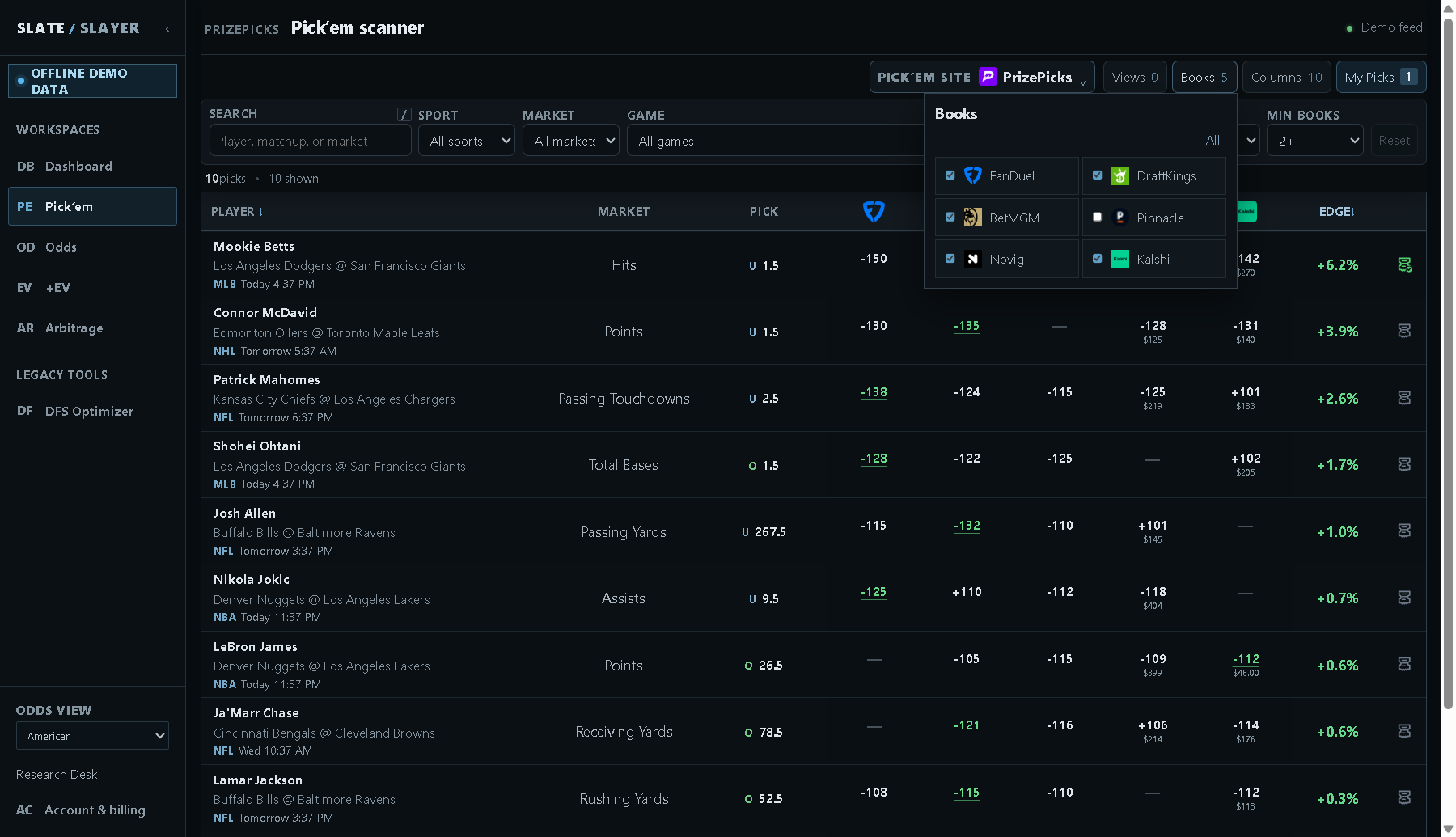
Illustrative demo data: Pick’em Books affects source evidence as well as displayed columns.
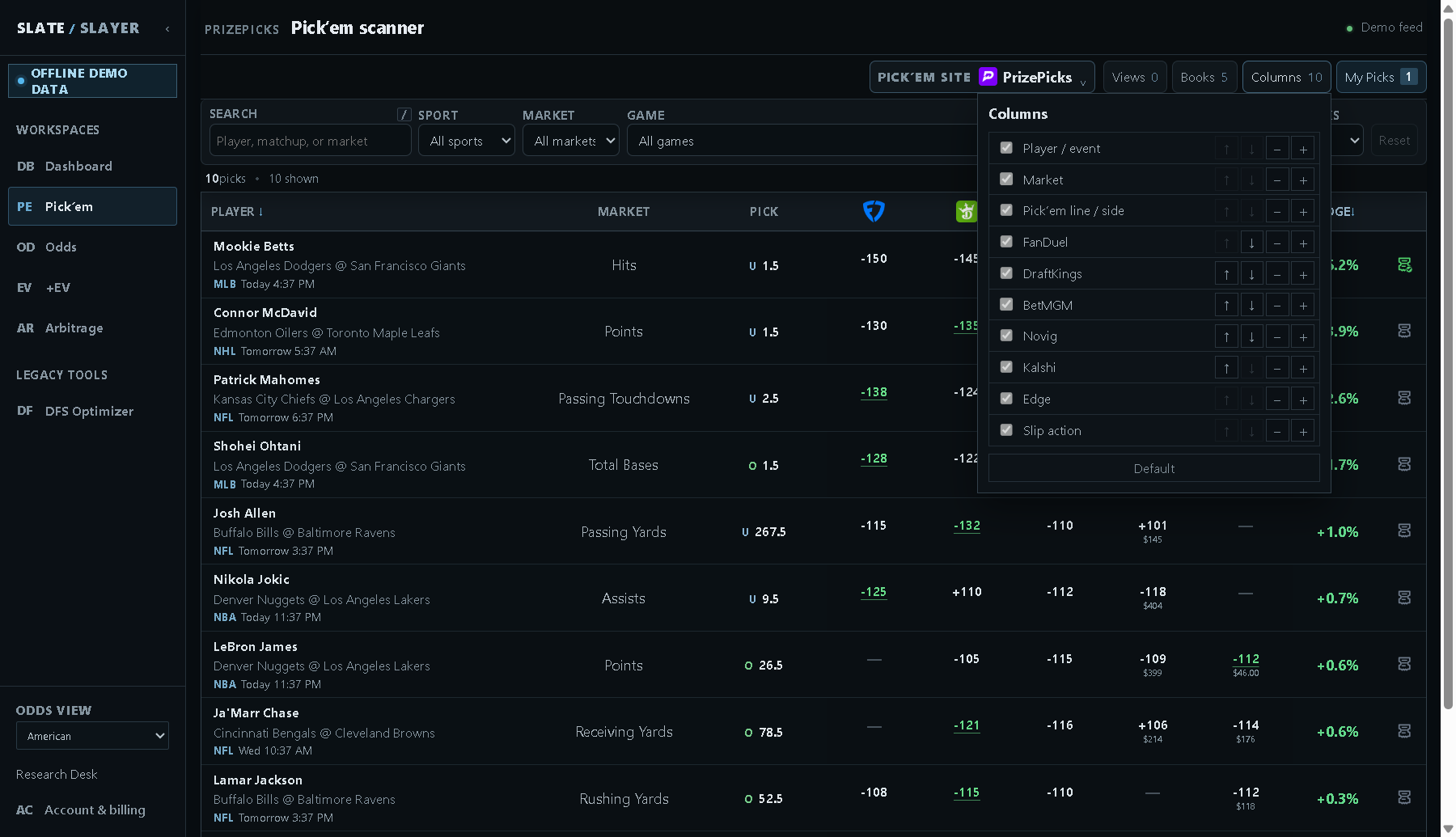
Illustrative demo data: fixed columns cannot be hidden or moved away from their pinned positions.
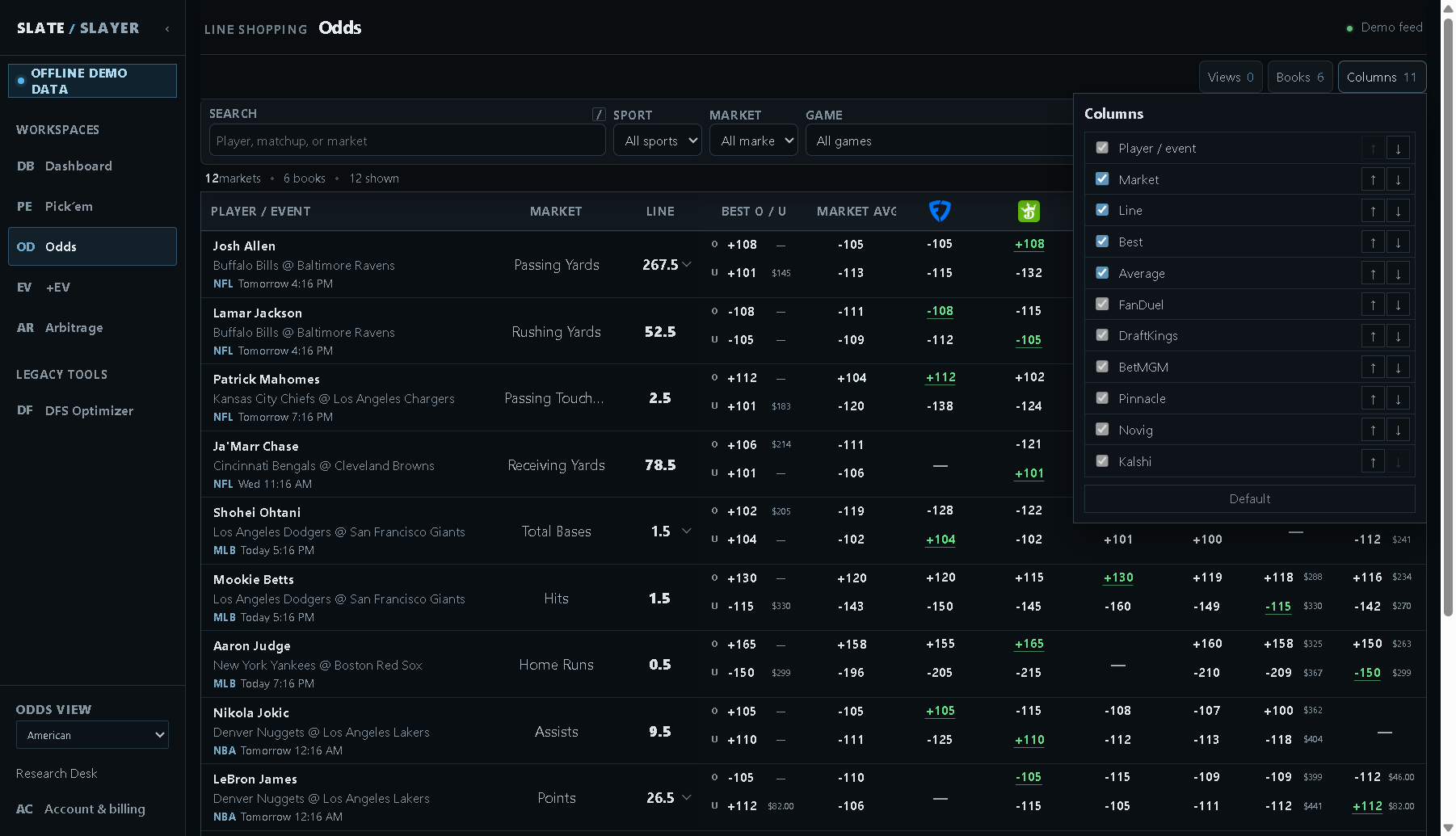
Illustrative demo data: Odds provides its own Columns settings.
Save and apply a named view
- Set the filters, Books and column layout you want to reuse.
- Open Views, enter a descriptive name, and select Save.
- Reopen Views and select the saved name to apply that configuration.
- Use the × next to a saved view to delete that saved configuration.
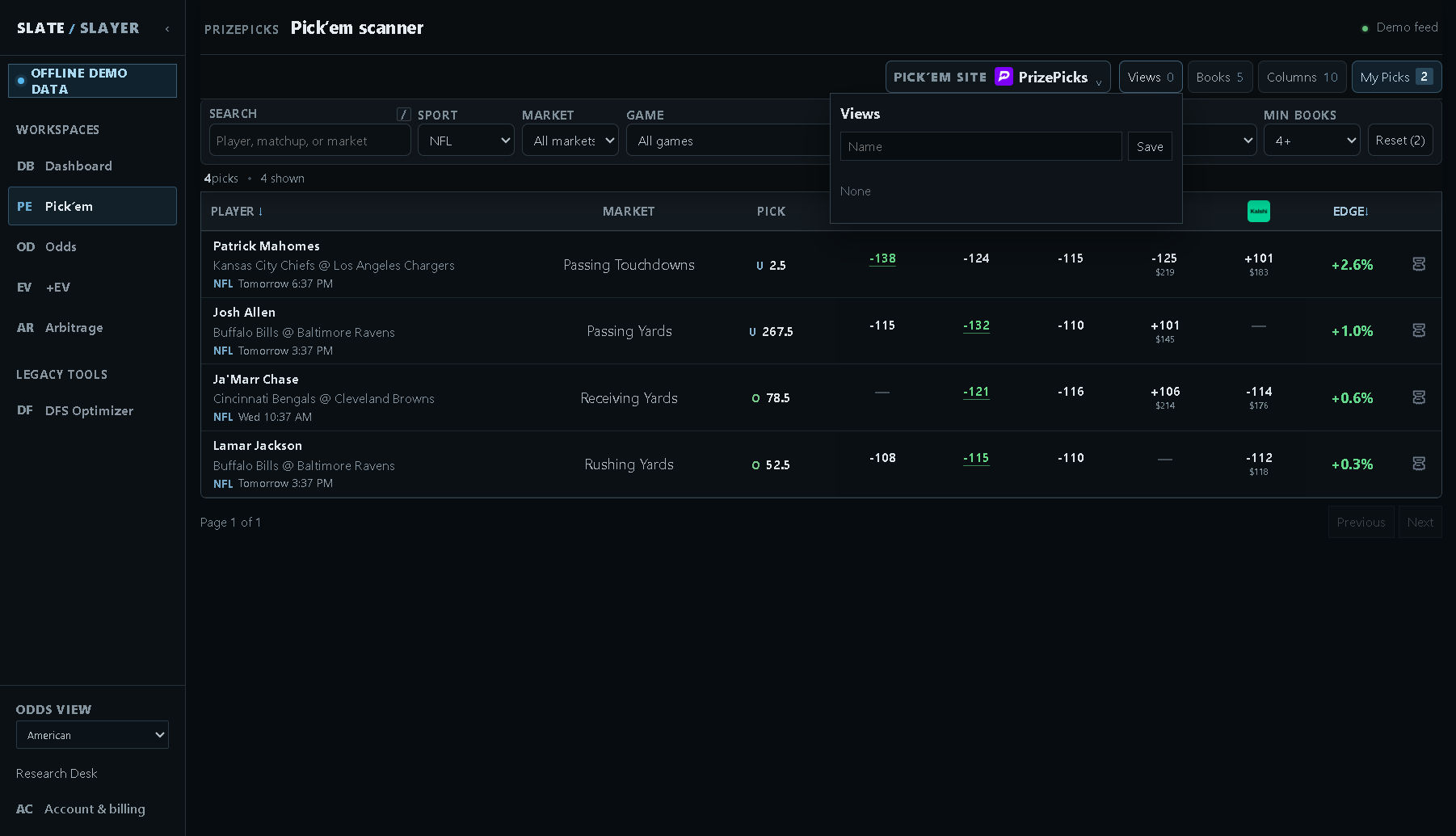
Illustrative demo data: name a view so you can return to that configuration.
Know what is saved
Views are stored in this browser for your signed-in account. Pick’em views are specific to the chosen provider; Odds has its own saved views. Browser storage changes or a different browser/device can remove or omit those preferences.
Reset clears query filters where available. Columns → Default restores the default workspace configuration. Deleting a view removes only that saved configuration, not any provider selections or placed wagers.